The AIDH mobile app for iOS provides easy access to clinical information anytime, anywhere.
Available for both individual and institutional users with an active subscription it will support health professionals
with streamlined access to essential information and tools. Keep scrolling to learn how to install the mobile app via an iOS device.
All Therapeutic Guidelines Limited mobile apps are built as Progressive Web Apps (PWA) and are available for installation via iOS devices.
For NSW Health or VIC Health users, see the installation and authentication guides for your organisations:
NSW Health User Guide
VIC Health User Guide
iOS Device Installation
To install the AIDH mobile app on your iOS device, you will need to log in to the
AIDH website via your mobile device using a Safari, or Chrome mobile web browser. *
Therapeutic Guidelines Limited supports two types of subscriptions: individual and institutional subscriptions.
No matter what subscription type you have please make sure you log in to the
AIDH website on your Apple device’s
web browser before installing the AIDH mobile app.
*Recommend mobile web browsers for all Therapeutic Guidelines Limited mobile apps.
Log in instructions for individual users
Use your username and password to log in to the
AIDH website
via a supported mobile browser (active subscription required).
General log in instructions for institutional users
Users with an institutional
subscription will need to log in and access the
AIDH website via your organisation’s
AIDH portal icon or AIDH logo and then follow the 5
simple installations steps below.
To ensure you can install the app quickly just
ensure you are using a supported mobile web browser on your iOS device.
When you click the link from your organisation’s AIDH portal icon or logo, AIDH will automatically recognise your device. This means you will
not need to log in or authenticate your account any further.
To install the mobile app on iOS devices, follow these 5 simple steps
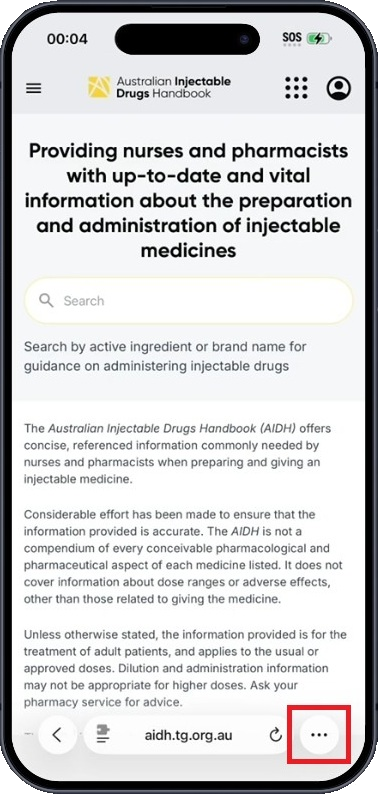
- Using your mobile web browser navigate to the home screen
of the AIDH10 website and select the 3 horizontal dots in the menu to view your setting options.
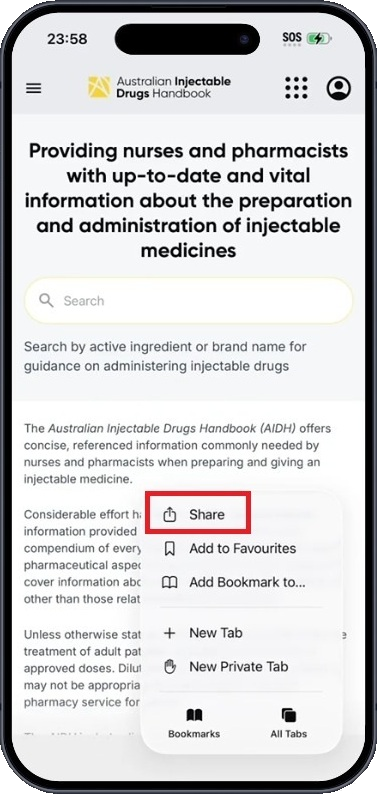
- Tap the Share button (a square with an upward arrow) at the bottom of the screen.
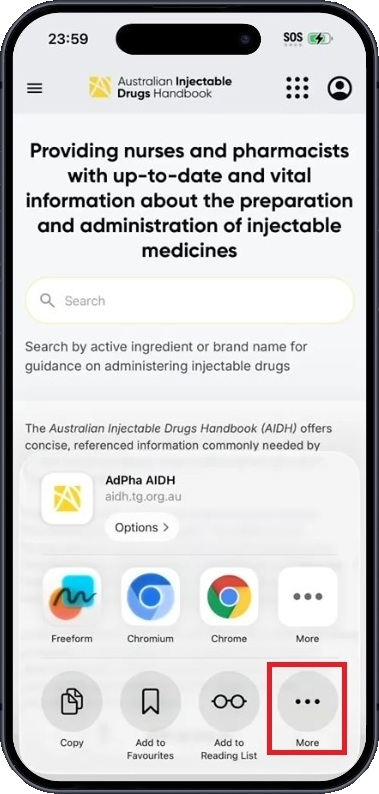
- Select More via the 3 horizontal dots to install the mobile app.
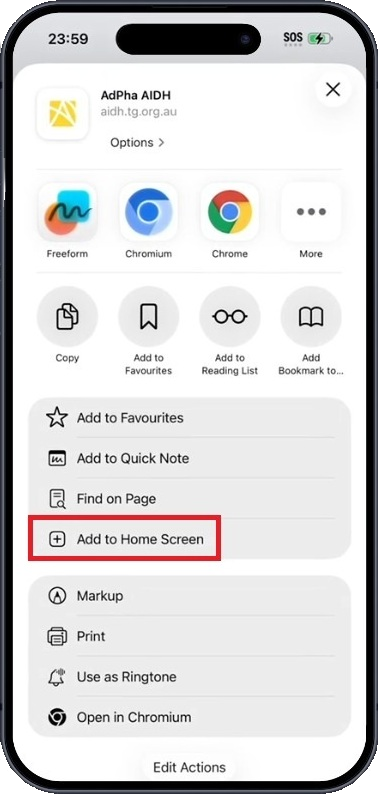
- Scroll down and select “Add to Home Screen.”
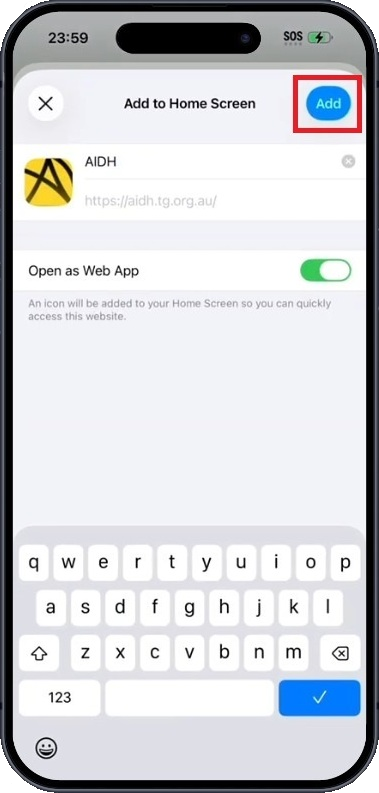
- The AIDH product icon will now appear so just tap ‘Add’ and then navigate to your home screen to launch the app.
The
AIDH icon will now appear on your home screen. Tap it to launch the app.
Additional tips – offline access
The mobile app features an offline mode that enables users to access content either with or without an
internet connection.
To get started with offline mode, follow the steps below.
- Your first time using the app after installation: Once you’ve installed the mobile app,
please ensure you’re connected to the internet, then open the app. Once you open the app for the first time, the app
will automatically download all its content to be available for offline use.
- Your subsequent app uses after installation – updating the mobile app’s content: If
you’re connected to the internet, the mobile app will automatically update its content each time you open
it.
Please note the time taken to download or update the mobile app’s content will depend on the speed of your
internet connection.
Troubleshooting
- Recommended mobile web browsers: If your mobile app is not installing, ensure you are
using a recommended browser such as Chrome or Safari and that your device meets the installation
requirements.
- Product mobile app icon or logo not appearing? Try restarting your device or clearing
your mobile browser cache if the icon or product logo does not appear after you have completed the
installation process.
- Content not appearing? Try clearing the AIDH app's or your browser's cache.
Browser support: Firefox and Samsung Internet browsers are not supported.
Further support
Thank you for using Therapeutic Guidelines Limited products!
If you need further assistance with Therapeutic Guidelines mobile app installation or authentication,
please contact our IT Support Team at support@tg.org.au.
For troubleshooting with the AIDH10, Don’t Rush to Crush or ObesiD mobile apps, please contact the IT
Support Team at adphasupport@tg.org.au.