



VIC Health staff can use the Therapeutic Guidelines Limited mobile apps* to access trusted clinical information wherever they are working from.
The apps are designed to support easy access to clinical information for users working on-site or remotely.
This user guide has been created to help you get the most out of the mobile apps. It provides step-by-step instructions on how to set up the mobile app you have chosen to use in your daily workflow.
* Products from the Therapeutic Guidelines Limited platform include Therapeutic Guidelines, Don’t Rush to Crush, Australian Injectable Drugs Handbook (AIDH) and ObesiD . You can access further guides and information in the Resource Hub.
Mobile App User Guide for VIC Health Staff
Navigate to the Clinicians Health Channel (CHC) on your mobile web browser and choose the product you want to install. Then click on the product icon or logo link in the CHC portal to access the resource. You will need to login via a pop-up window to access the product content. *
Keep scrolling to find out how to install the mobile app.
*Due to some changes in the login process for CHC VIC Health staff you will need to login via a pop-up window and get access via your login credentials before installing the mobile app.
You can install the new mobile app through the mobile web browser for your Apple or Android devices. See the mobile app installation instructions at the end of the document.
How-to install our mobile apps (Android or iOS)
All Therapeutic Guidelines Limited mobile apps are Progressive Web Apps (PWA) and are available on Android, and iOS devices.
To install any of the mobile app/s for Therapeutic Guidelines, Don’t Rush to Crush, Australian Injectable Drugs Handbook (AIDH) and ObesiD on your device, use one of these guides.
Android devices
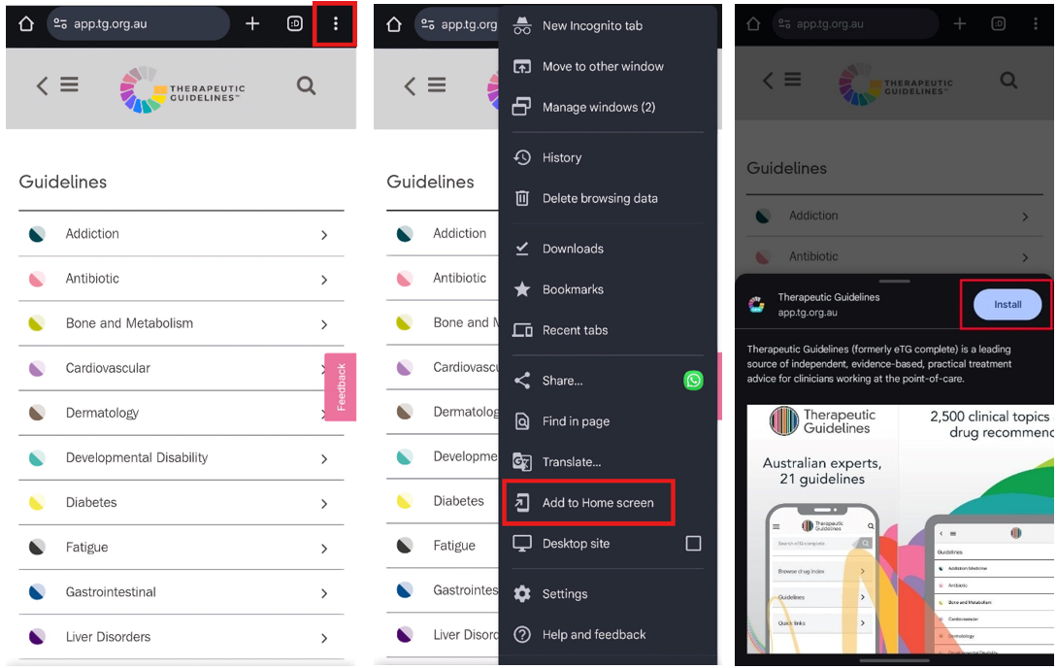
Ensure you are logged into the CHC portal before attempting to install the mobile app. To install the mobile app on an Android device, follow these 3 simple steps.
Installing via web browser
- Add to home screen:Once the product website loads in your mobile web browser, tap the three vertical dots (menu) in the upper right corner of the browser. Select “Add to Home screen” from the dropdown menu.
- Confirm installation: You may be prompted to confirm you have installed the mobile app. If prompted, please click the confirmation button and tap “Add” to finalise.
- Accessing the app: The product icon will now appear on your home screen. Tap it to launch the app.
iOS devices
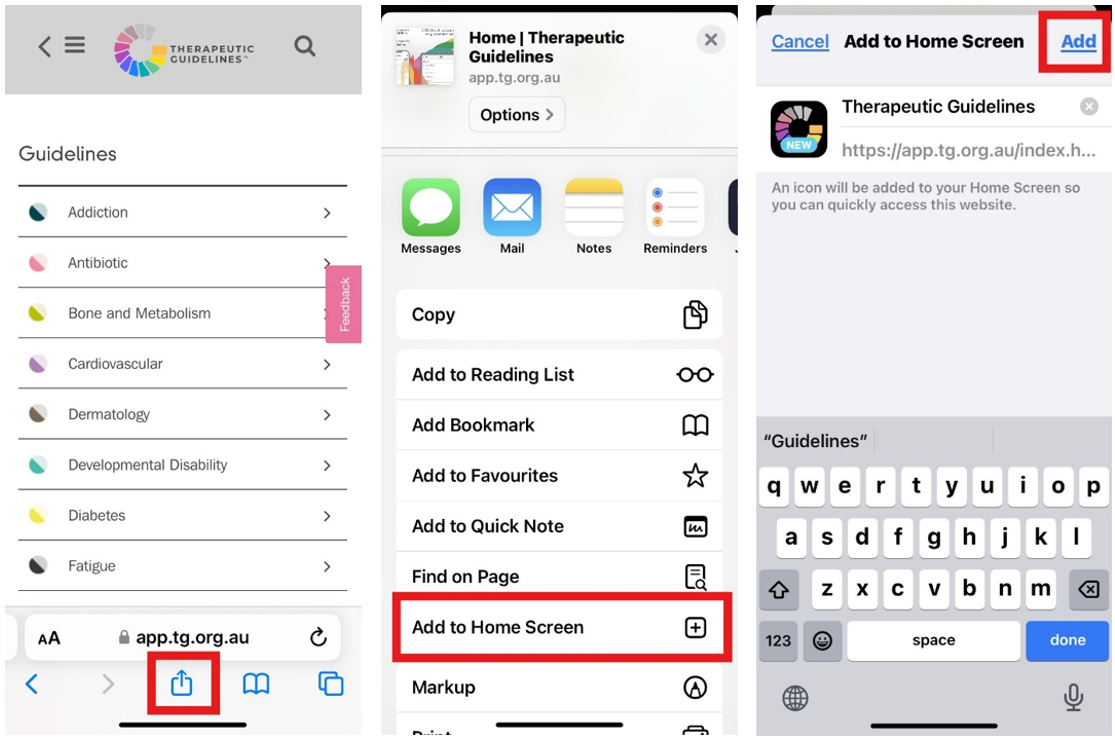
Ensure you are logged into the CHC portal before attempting to install the mobile app. To install the mobile app on an iOS device, follow these 3 easy steps.
- Using your mobile web browser navigate to the home screen of the product web app.
- Tap the Share button (a square with an upward arrow) at the bottom of the screen.
- Scroll down and select “Add to Home Screen.”.
The product icon will now appear on your home screen. Tap it to launch the app.
Additional tips
- Updating the mobile app content: The mobile app will automatically update when you access it, but you’ll need to be connected to the internet when you first install it to ensure all content is downloaded in advance and can be used offline.
- Offline access:
- Once you’ve logged in to your account you can access product content offline. To get started, connect to the internet to fully download all the information in advance.
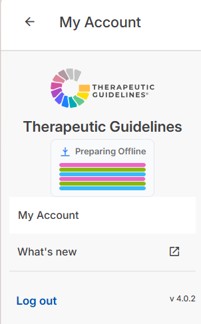
- You can check what stage the download is at by reviewing the ‘Preparing offline’ content progress bars in your My Account profile.
- For the best experience, make sure you wait a few minutes till the progress bar reaches 100% to ensure all the content is fully downloaded before switching your device to offline mode.
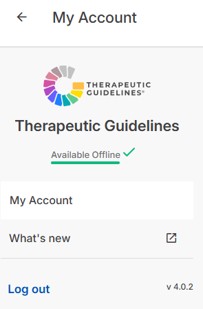
- The ‘Available content’ will appear with a green tick once all the content is completed downloaded.
Troubleshooting
- Recommended mobile web browsers: If your mobile app is not installing, please ensure you are using a recommended web browser (i.e. Chrome, Safari), * and your device meets the installation requirements.
- Product mobile app icon/logo not appearing? Try restarting your device or clearing your mobile web browser cache if the icon or product logo does not appear after you’ve finished the installation process outlined above.
*Firefox and Samsung Internet browsers are not supported.
Thank you for using Therapeutic Guidelines Limited products! If you need further assistance with Therapeutic Guidelines mobile app installation or authentication, please don’t hesitate to contact our IT Support Team at support@tg.org.au.
For troubleshooting for AIDH10, Don’t Rush to Crush or ObesiD mobile app please contact IT Support Team at adphasupport@tg.org.au.