ObesiD access is available for users with an active subscription via web and mobile app access. This guide
provides information for individual and institutional users on how to download and authenticate the ObesiD
mobile app for iOS and Android devices.
Customers can download the new mobile app from the Apple App Store or Google Play Store.
If your access to ObesiD is being offered to you by your institution, you can authenticate the new mobile
app with your organisation once every 6 months to maintain access to ObesiD. You can authenticate
using one of the following methods: WIFI (IP Address) authentication, or Access Key. See instructions for
each authentication method.
The new ObesiD mobile app is available on Android and iOS devices.
To install the app on your devices, please use one of the following installation methods.
Note:Users may need to clear their browser cache to see the new content
updates.
Android devices
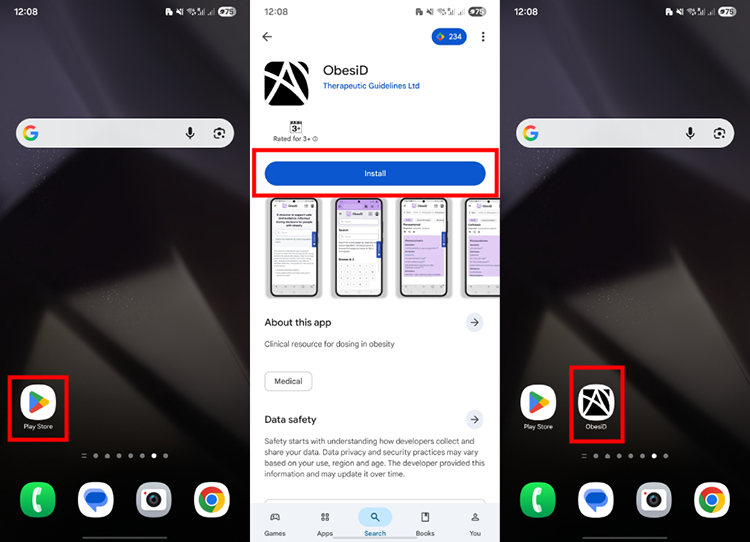
Installing via Google Play Store
Open Google Play Store: Tap the Google Play Store app on your device.
Search the app: Type “ObesiD” in the search bar.
Install the app: Locate the app in the search results and tap “Install”.
Open the app: Once installed, tap “Open” from the Play Store or find the app icon on
your home screen or app drawer.
Android installation steps for ObesiD.
iOS devices
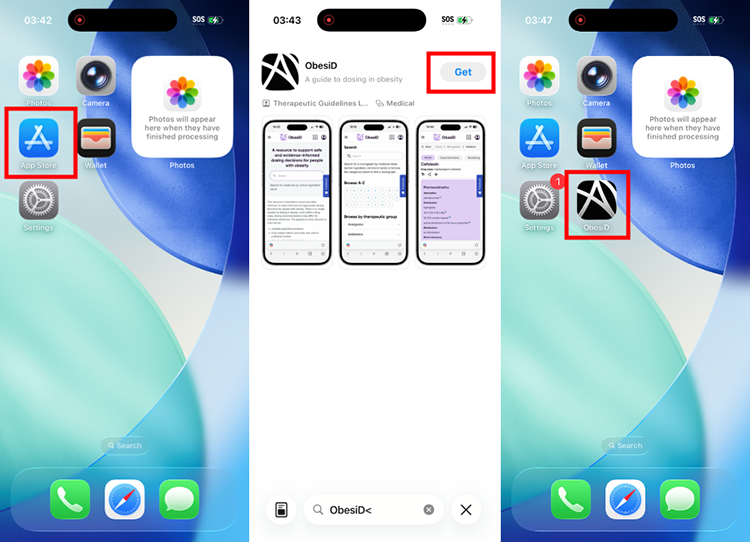
Installing via App Store
Open the App Store: Tap the App Store icon on your device.
Search the app: Type “ObesiD” in the search bar.
Install the app: Find the app in the search results and tap “Get”, then “Install”.
Open the app: After installation, tap “Open” from the App Store or locate the app icon
on your home screen.
iOS installation steps for ObesiD.
Mobile app authentication methods
If your access to ObesiD is being offered to you by your institution, you can authenticate the new mobile
app with your organisation once every 6 months in order to maintain access to ObesiD. You can authenticate using
one of the following methods: WIFI (IP Address) authentication, or Access Key. See instructions for each
authentication method.
If you have an individual user subscription, you can authenticate via email address and password login.
This method has not changed.
WIFI (IP address) authentication
IP address authentication allows users to access the app based on their network's IP address. This method
is often used by organisations to provide secure access to their employees or members.
How to authenticate with IP address
Connect to the network: Ensure that you are connected to the network that has the
authorised IP address. This is usually your organisation’s internal network, or a VPN provided by your
organisation.
Access the app: Open your ObesiD app installed on your device.
Automatic access: If your IP address is recognised by our system, you will be granted
automatic access without needing to log in.
Troubleshooting:
If you are not granted access, ensure you are connected to the correct network or VPN.
Contact your IT department to verify that your IP address is correctly configured for access.
Contact IT Support: For any issues, reach out to our support team at adphasupport@tg.org.au.
Access Key
An Access Key allows users to self-manage authentication of the ObesiD mobile app. A user can authenticate
the app through a link provided on their organisation's website. After logging in, users can generate a
unique Access Key, which enables easy and secure access to the app without needing to log in each time.
How to authenticate with Access Key
Access the ObesiD website using the link provided by your organisation:
On your mobile browser, open the link to the ObesiD website shared by your organisation.
Obtain the Access Key:
Once logged into the ObesiD website, tap on the Profile icon located in the top
right corner of the screen.
Select Copy Access Key from the dropdown menu.
You will see a browser pop-up message saying: “Access key copied to clipboard”.
Tip: Save your access key in a secure location, such as a notes app. This key
remains valid for up to 6 months and can be reused if you change devices or reinstall the application.
Access Key login:
Open the ObesiD app installed on your device.
Click on the "Access Key" button.
Paste the copied access key under Access Key and tap the continue
button.
You will now see a message at the bottom of your screen saying: Success! Access key has been set.
Note: The copy Access Key option will disappear once it
has been copied on your device.
Troubleshooting: If you do not see the “Copy Access Key” option as described in Step 2:
Clear your browser cache: This often resolves display issues.
Refer to guides for clearing the cache on Safari or Chrome browsers.
Ensure proper login: Confirm that you are logged into the Therapeutic Guidelines website using the
referring URL provided by your organisation.
Email address and password login
For customers with an individual user subscription, please access the guidelines via your email address and
password.
Email and password login provides a straightforward way for users to access their accounts directly by
entering their credentials.
Additional tips – offline access
The mobile app features a content offline mode that enables users to access content either with or without an
internet connection.
To get started with offline mode, follow the steps below.
Your first time using the app after installation: Once you’ve installed the mobile app,
please ensure you’re connected to the internet, then open the app. Once you open the app for the first time, the app
will automatically download all its content so it is available for offline use.
Your subsequent app uses after installation – updating the mobile app’s content: If
you’re connected to the internet, the mobile app will automatically update its content each time you open
it.
Please note the time taken to download or update the mobile app’s content will depend on the speed of your
internet connection.
Further support
Thank you for using Therapeutic Guidelines Limited products!
If you need further assistance with the ObesiD, AIDH10 or Don’t Rush to Crush mobile apps, please contact
the IT Support Team at adphasupport@tg.org.au.
Or for troubleshooting for the Therapeutic Guidelines mobile app installation or authentication, please don't hesitate to
contact our IT Support Team at support@tg.org.au.